

Process shift swap & shift offer requests
When employees request shift swaps or shift offers, you can use the Camelo web or Camelo app to accept/reject the requests.
Notes
- You must have Owner access to process shift requests.
- When the employees who receive the shift requests accept/decline the request, you can process to approve or cancel it.
Process shift requests
You can process requests through the Pending Requests section in Home, or from the Notifications panel.
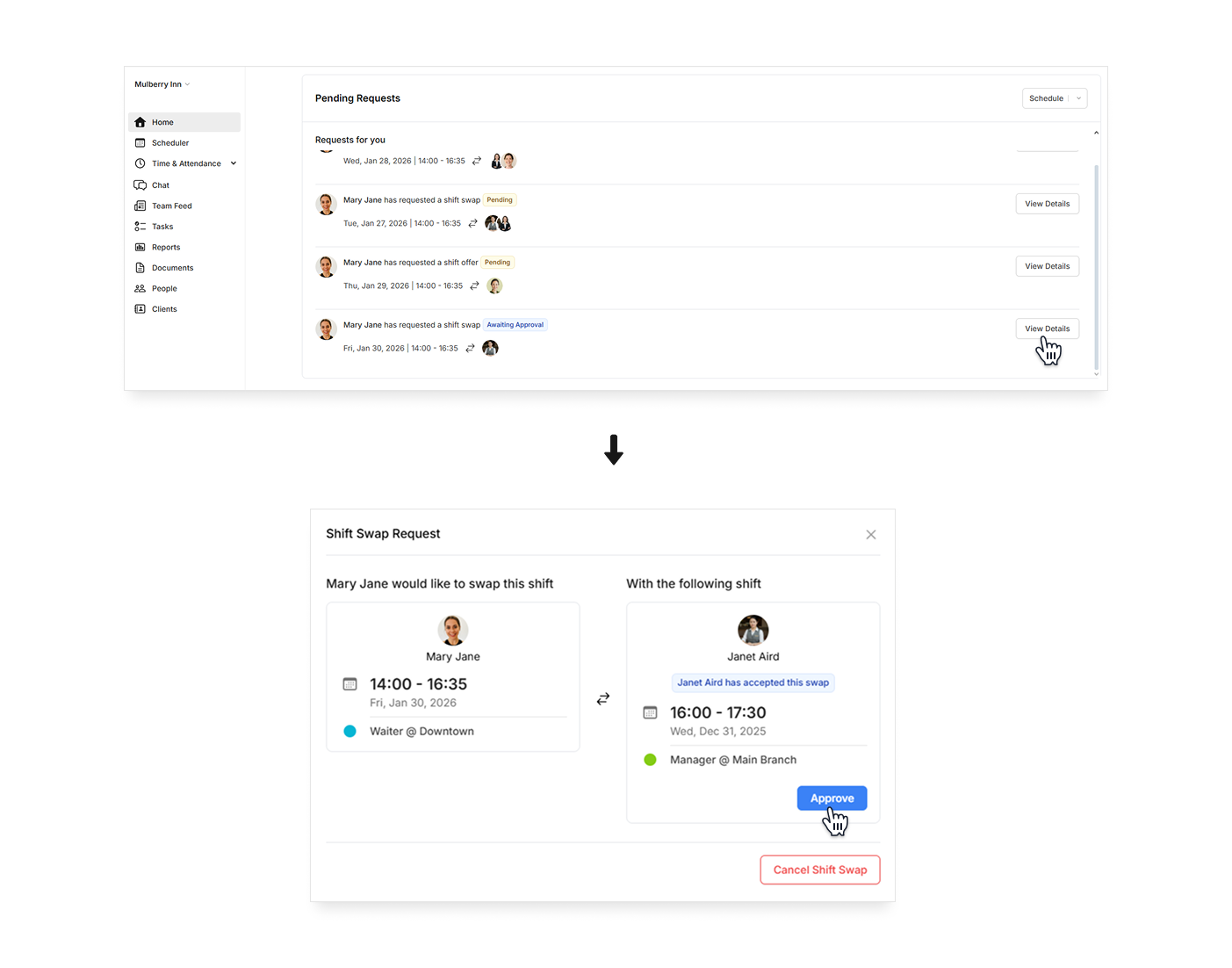
Pending Requests section on Home
- In the left sidebar, click Home to go to Home.
- Scroll to the Pending Request section to review the requests. Click View Details on the request with the Awaiting Approval badge.
- Click Accept to approve the request, or Cancel Shift Swap/Offer to approve/decline the request.
From Notifications
When an employee submits a new leave request, you’ll receive a notification.
- Click the to the Notifications tab on the Camelo app.
- Review the details of the leave request.
- Tap Approve to approve the request. Or tap Reject to decline the request.
You can process requests through the Notifications tab or the Menu tab.
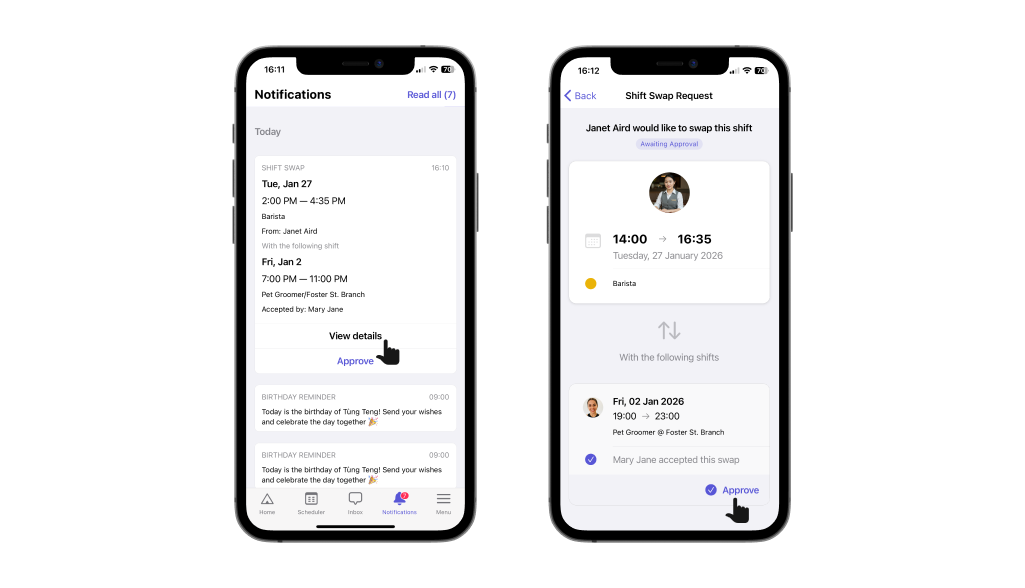
From the Notifications tab on Camelo app
When an employee submits a new shift request, you’ll receive a mobile notification.
- Go to the Notifications tab on the Camelo app.
- Review the details of the request.
- Tap Approve to approve the request. Or tap Reject to decline the request.
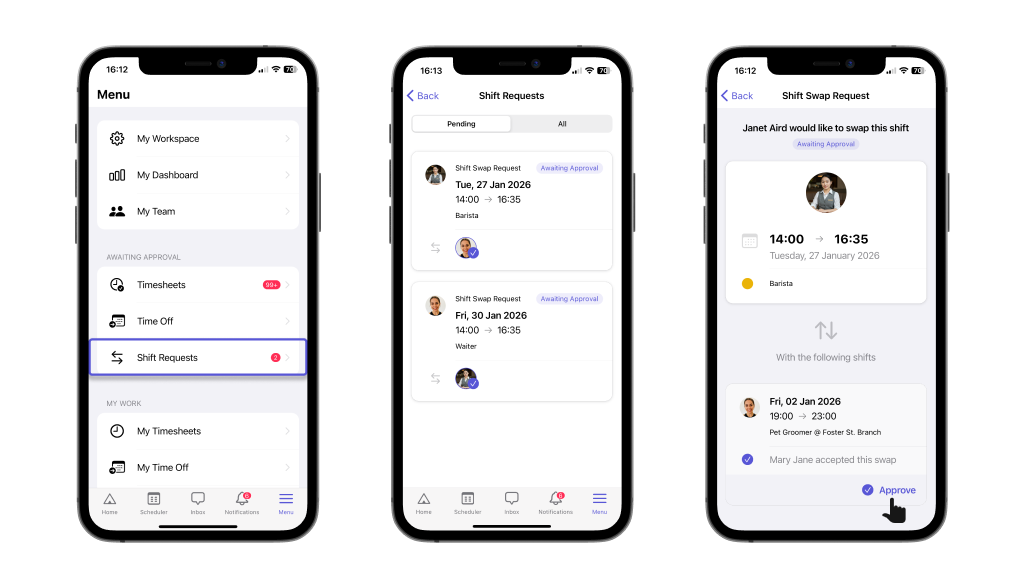
From the Menu tab on Camelo app
You can view a list of all shift requests, or approval all pending requests at a time. To do so:
- Go to the Menu tab at the bottom of the screen.
- Scroll to the AWAITING APPROVAL section, and select Shift Requests.
- You’ll see a list of all requests waiting for approval here.
You can process requests through the Notifications tab or the Menu tab.
From the Notifications tab on Camelo app
When an employee submits a new shift request, you’ll receive a mobile notification.
- Go to the Notifications tab on the Camelo app.
- Review the details of the request.
- Tap Approve to approve the request. Or tap Reject to decline the request.
From the Menu tab on Camelo app
You can view a list of all shift requests, or approval all pending requests at a time. To do so:
- Go to the Menu tab at the bottom of the screen.
- Scroll to the AWAITING APPROVAL section, and select Shift Requests.
- You’ll see a list of all requests waiting for approval here.
Set up auto approval for shift requests
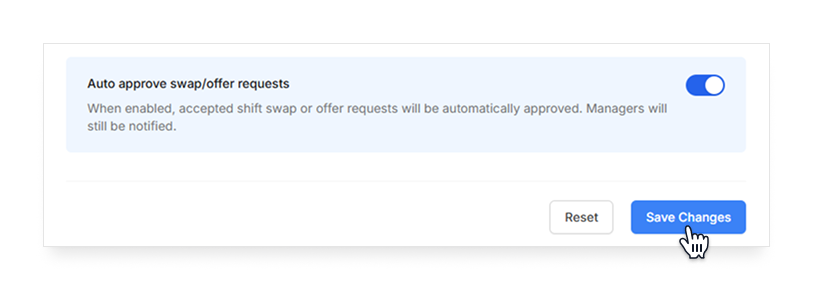
Auto-approve shift requests allows accepted shift swaps and shift offers to be approved automatically, so schedules stay up to date without extra steps.
Managers are still notified when requests are approved, ensuring you stay informed without needing to take action every time.
- Click the in the top-right corner of the page to go to Settings.
- Under the Scheduling section, click General Settings.
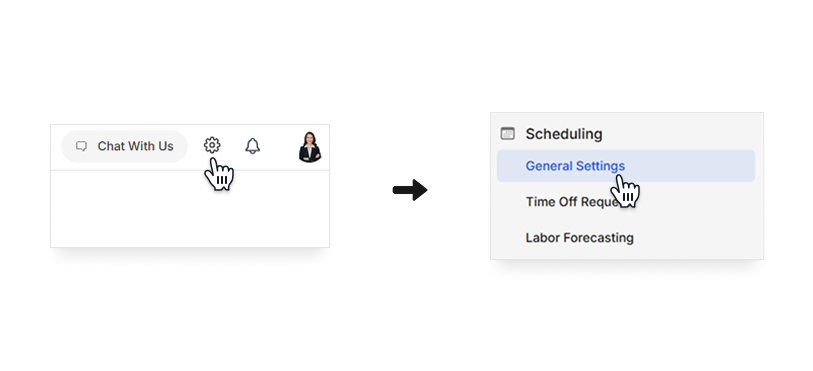
- Toggle on Auto approve swap/offer requests.
- Click Save Changes when done.
This feature is currently only available on the Camelo web app.
This feature is currently only available on the Camelo web app.
You can disable this feature at any time to return to manual approvals.
