

Swap shifts and offer shifts
If you’re unable to work an assigned shift, you can swap shift or offer shift.
- Swap shift: you trade your shift with a coworker.
- Offer shift: you offer your shift to other coworkers.
Notes
- You can swap or offer a shift after you successfully confirm the shift.
- When you swap or offer a shift, you’re still responsible for that shift until your coworker picks it up and the manager approves the swap/offer request.
Swap shift
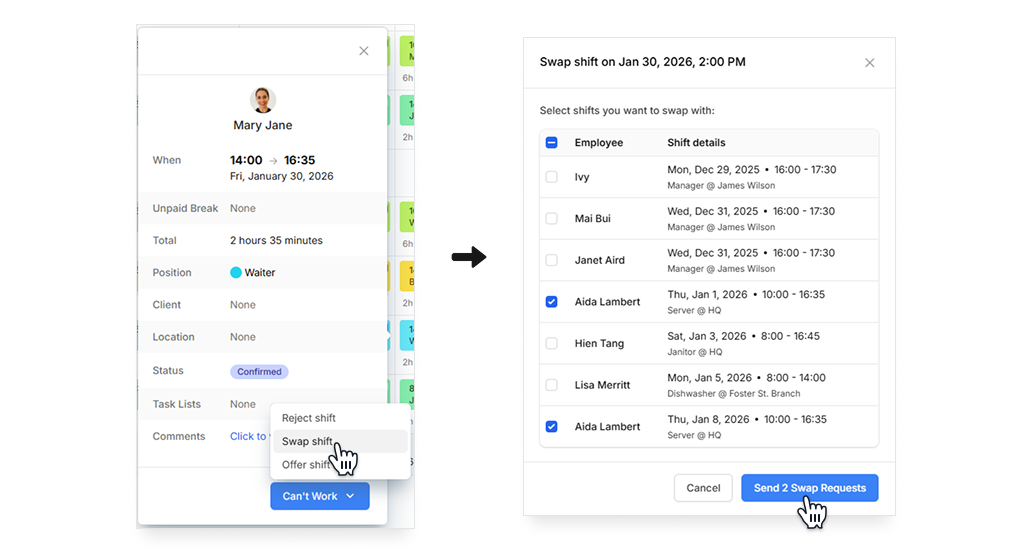
Scroll to My Calendar section on the Home tab or visit the Scheduler tab to view your shifts. Click on the shift you want to swap with your coworker’s. Then:
- Click on Can’t Work button.
- Select Swap shift.
- A list of eligible shifts you can swap will show. Select the shift you want to swap.
- Click Send Swap Request.
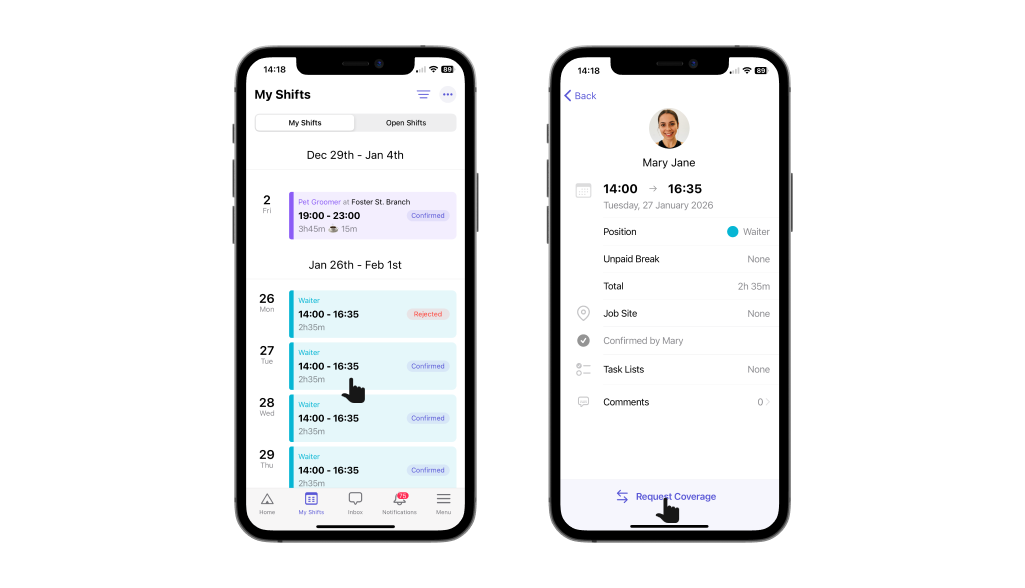
- Go to My Shifts tab to view your shifts, then select the shift you want to swap with your coworker. Then tap Request Coverage.
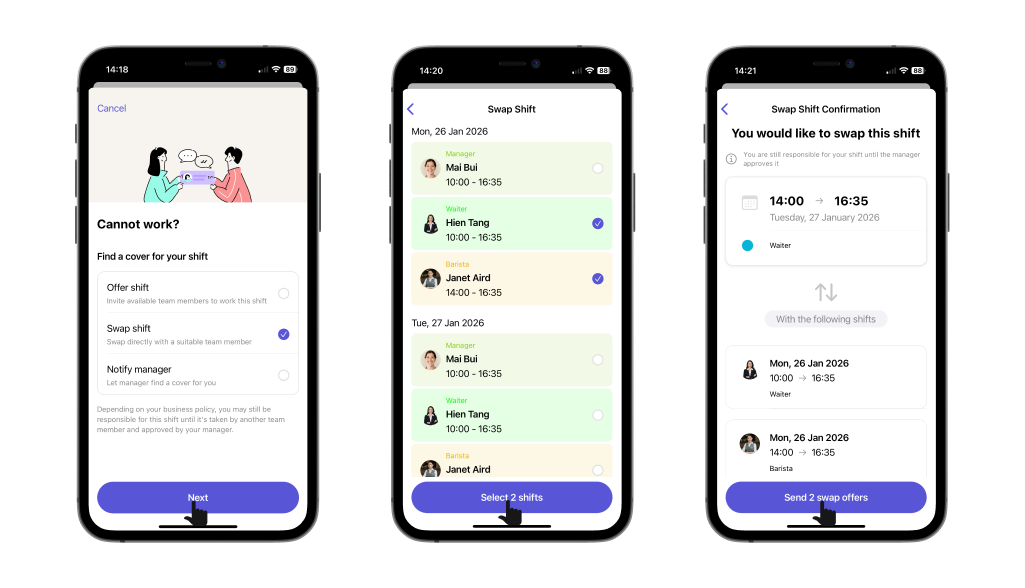
- Select Swap shift, then tap Next.
- A list of eligible shifts you can swap will show. Select the shift(s) you want to swap, then tap Select shift(s).
- Confirm your shift swap request(s), then tap Send swap offer(s).
- Go to My Shifts tab to view your shifts, then select the shift you want to swap with your coworker. Then tap Request Coverage.
- Select Swap shift, then tap Next.
- A list of eligible shifts you can swap will show. Select the shift(s) you want to swap, then tap Select shift(s).
- Confirm your shift swap request(s), then tap Send swap offer(s).
After you send the request, the employee with the shift you want to swap will receive a notification asking them to approve/reject the swap request.
- If the employee approves the swap request, the manager will receive a notification asking for swap approval. If the manager approves the swap, you’ve successfully swapped your shift. If the manager rejects the swap, you’ll need to find another eligible shift to swap.
- If the employee rejects the swap request, you’ll receive a notification, and you’ll need to find another eligible shift to swap.
Offer shift
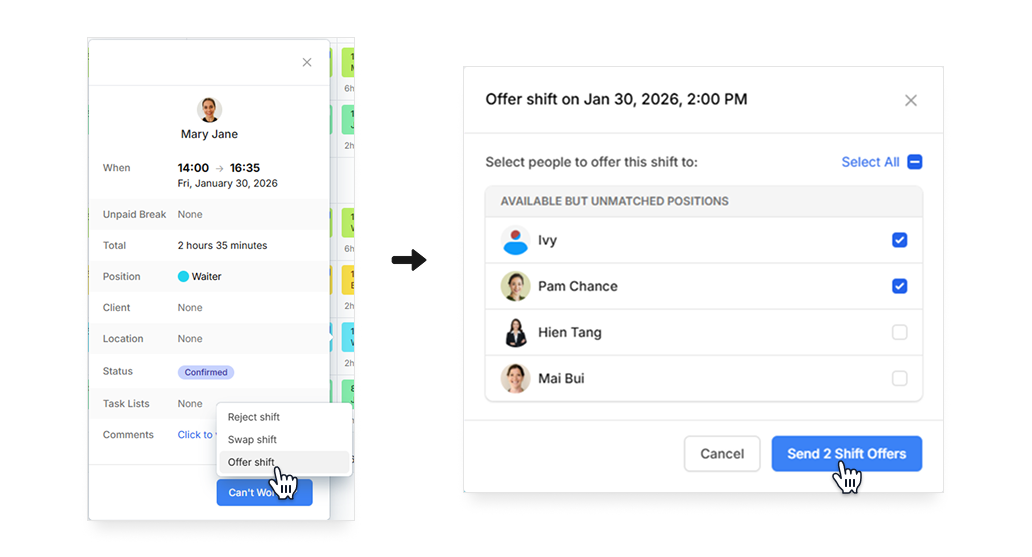
Scroll to My Calendar section on the Home tab or visit the Scheduler tab to view your shifts. Click on the shift you want to swap with your coworker’s. Then:
- Click on Can’t Work button.
- Select Offer shift.
- A list of eligible coworkers you can offer your shift to will show. Select the coworkers you want to offer.
- Click Send Shift Offer.
- Go to My Shifts tab to view your shifts, then select the shift you want to swap with your coworker. Then tap Request Coverage.
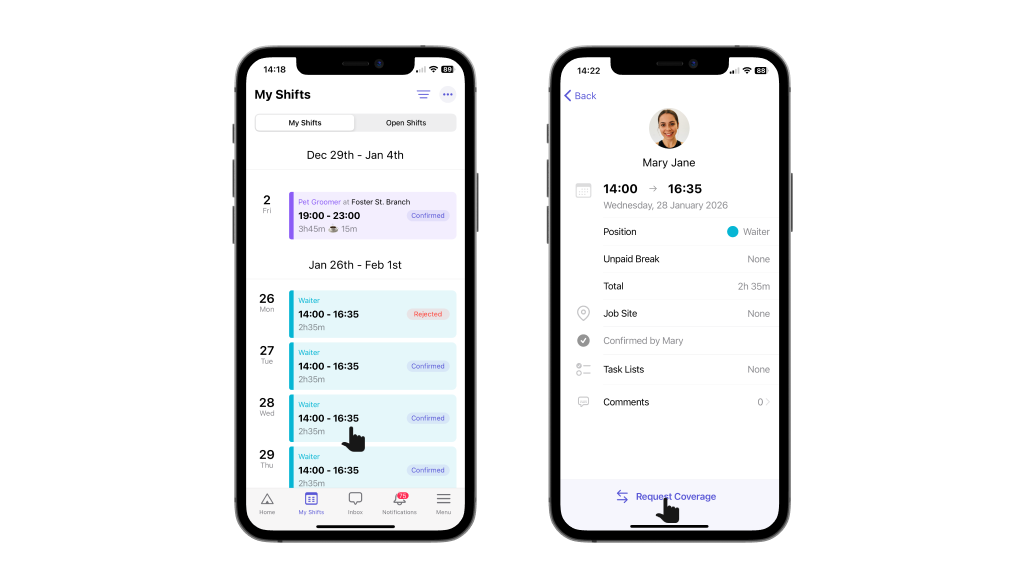
- Select Offer shift, then tap Next.
- A list of eligible coworkers you can offer your shift to will show. Select the coworker(s) you want to offer. Then tap Select member(s).
- Confirm your shift offer request(s), then tap Send offer(s).
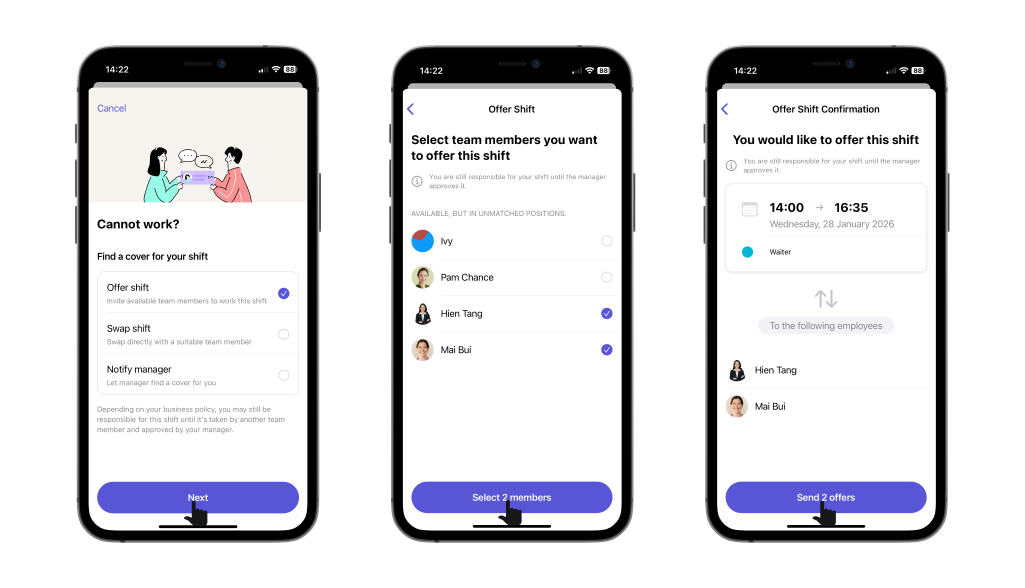
- Go to My Shifts tab to view your shifts, then select the shift you want to swap with your coworker. Then tap Request Coverage.
- Select Offer shift, then tap Next.
- A list of eligible coworkers you can offer your shift to will show. Select the coworker(s) you want to offer. Then tap Select member(s).
- Confirm your shift offer request(s), then tap Send offer(s).
After you send the request, the coworkers you offer the shift to will receive a notification. If a coworker decides to take the shift you offer, they’ll approve the offer request, and the manager will receive a notification asking for approval.
- If the manager approves the shift offer, you’ve successfully offered your shift to your coworker.
- If the manager rejects the shift offer, you’ll need to find another eligible employee to offer the shift to.
Ask your manager to find someone to cover for you
In case you are not sure who you can offer or swap your shift with, you can ask your manager to find a cover for you.
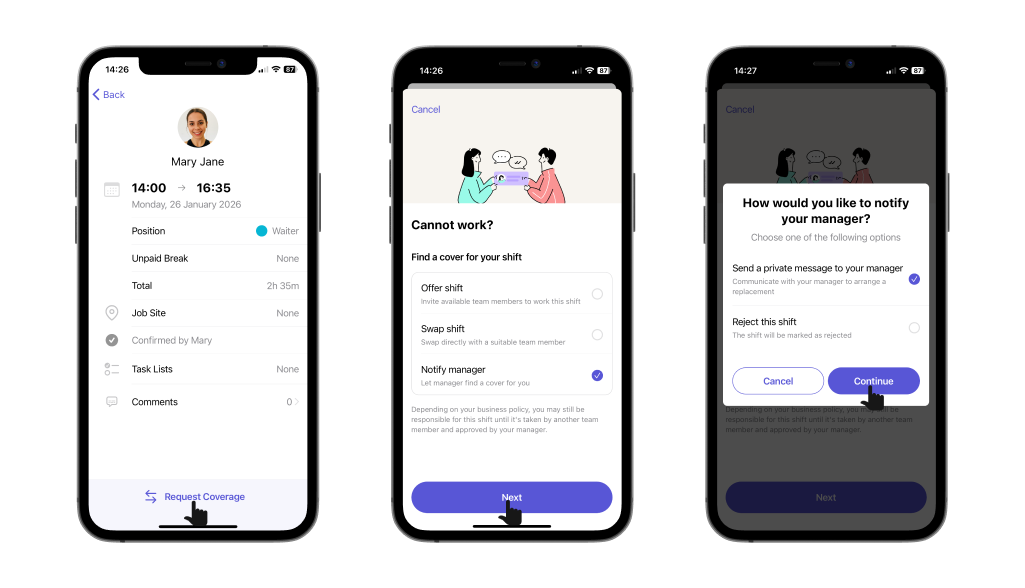
- On Camelo mobile app, go to My Shifts tab to view your shifts, then select the shift you want to swap with your coworker. Then tap Request Coverage.
- Select Notify manager, then tap Next.
- Select Send a private message to your manager, then tap Continue. You will be navigated to the chat with your manager, and then you can communicate to arrange a replacement.
Keep track of your shift requests
You can view all your shift requests by going to the Pending Requests section on the Home tab.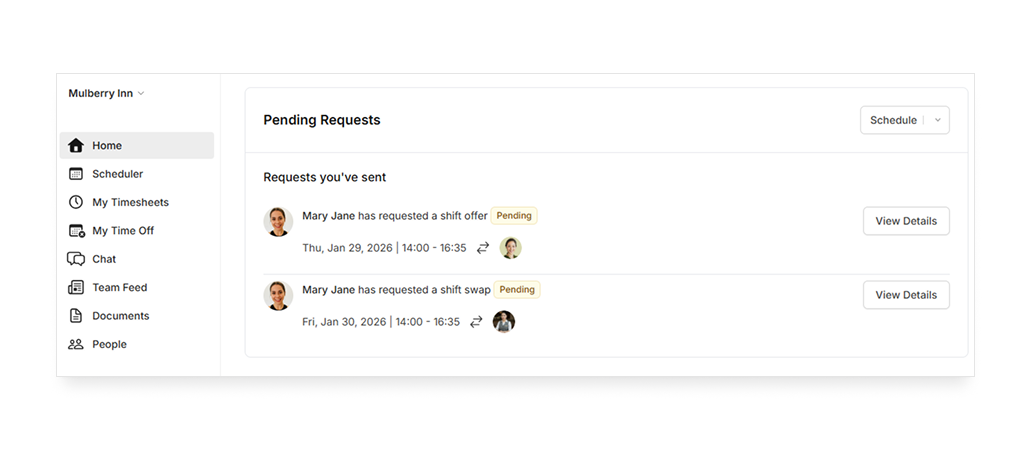
You can view all your shift requests by going to the Requests You’ve Sent section on the Home tab, or going to the Menu tab at the bottom of the screen and selecting My Shift Requests.
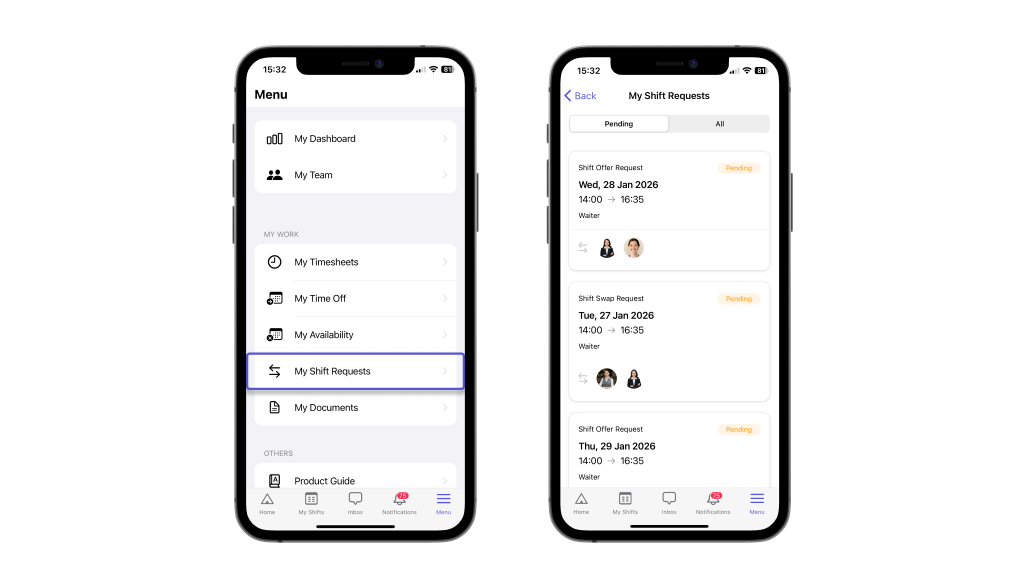
You can view all your shift requests by going to the Requests You’ve Sent section on the Home tab, or going to the Menu tab at the bottom of the screen and selecting My Shift Requests.
