

Manage public holidays
Public holidays are days off recognized by your country or company. Adding them to your schedule helps ensure accurate payroll, timesheets, and planning, especially for businesses that offer holiday pay or require special staffing during these dates.
📌 Currently, managing public holidays is only available on the Camelo web app.
Add a new public holiday
If your organization observes special events or company-wide days off, you can create them manually.
- Click the in the top-right corner of the page to go to Settings.
- Under the General section, click Public Holidays.
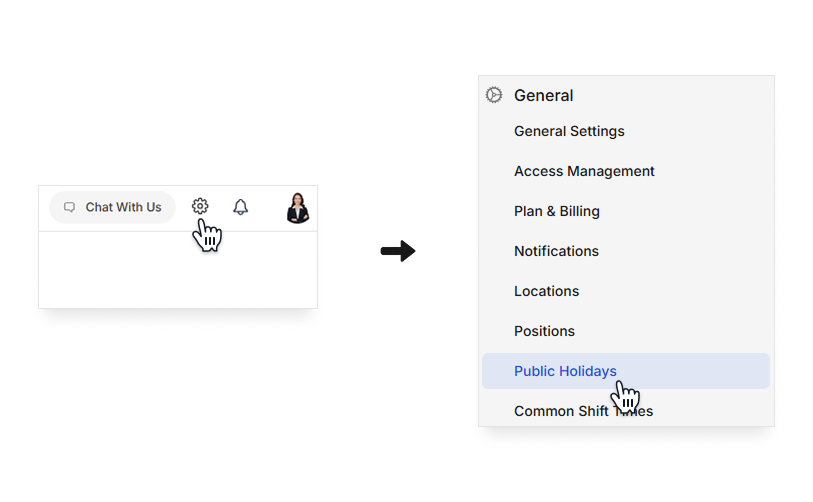
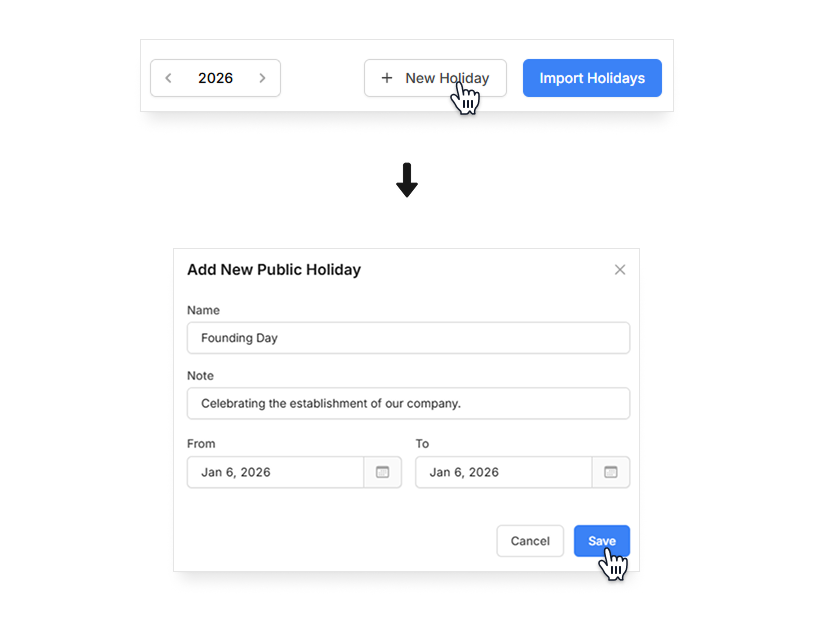
- Select the year you want to set public holidays, then click New Holiday.
- Enter name, note (if needed), and the date range of the new public holiday. Then click Save.
Import public holidays by regions
You can save time by importing predefined public holidays for your country or region.
- Click the in the top-right corner of the page to go to Settings.
- Under the General section, click Public Holidays. Then click Import Holidays.

- Select the year, region, and schedules for which you want to import holidays. Click Preview to have an overview of all the public holidays. Then click Import when done.
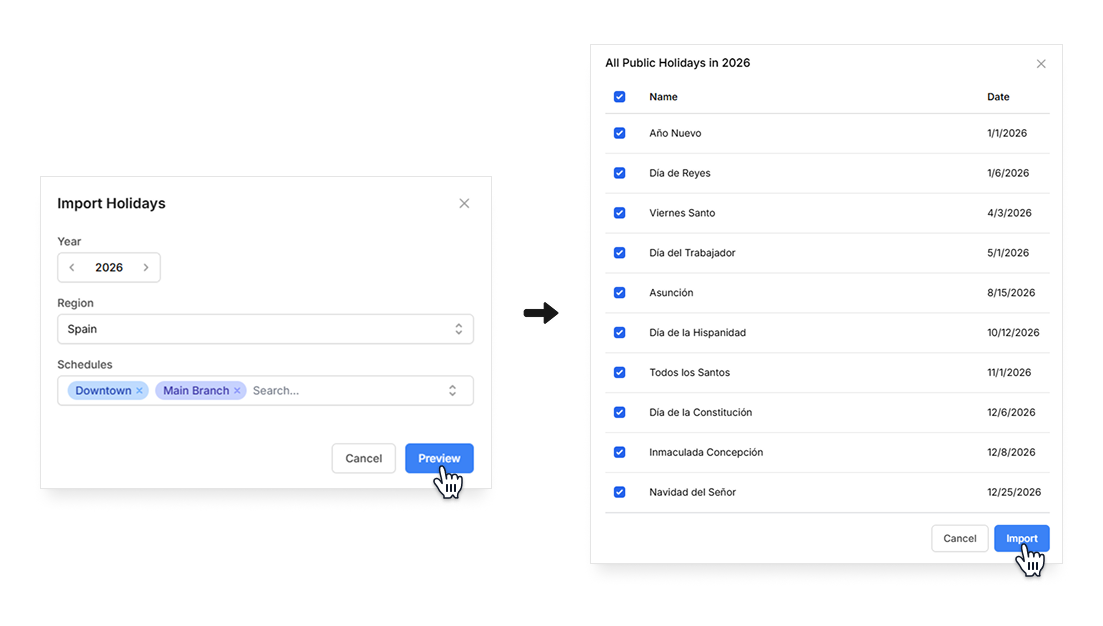
Imported holidays will appear in your holiday list immediately.
Edit a public holiday
You can update a holiday’s name, notes, or date if there are changes.
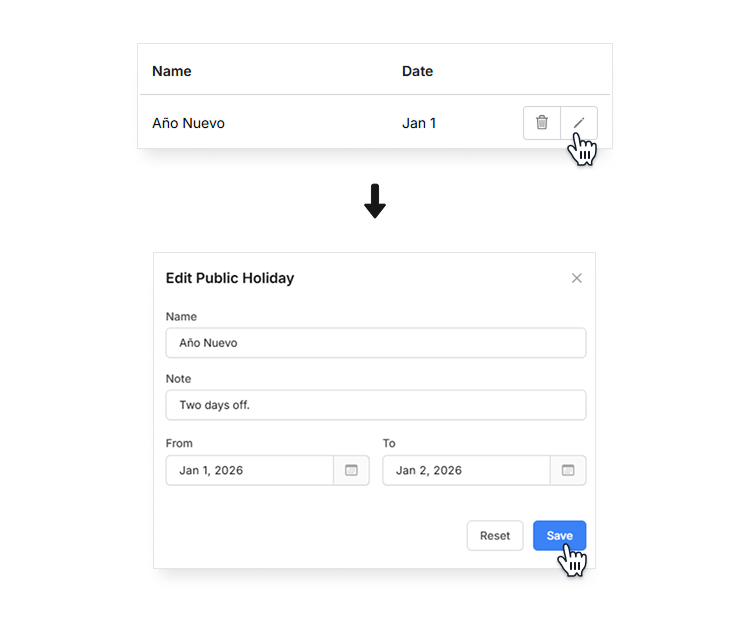
- In the Public Holidays list, find the holiday you want to update.
- Click the , make your changes. Then click Save to apply your updates.
Delete a public holiday
If a holiday is no longer needed, you can remove it easily.
- In the Public Holidays list, find the holiday you want to delete.
- Click the . A confirmation box will appear; click Yes to delete the holiday.
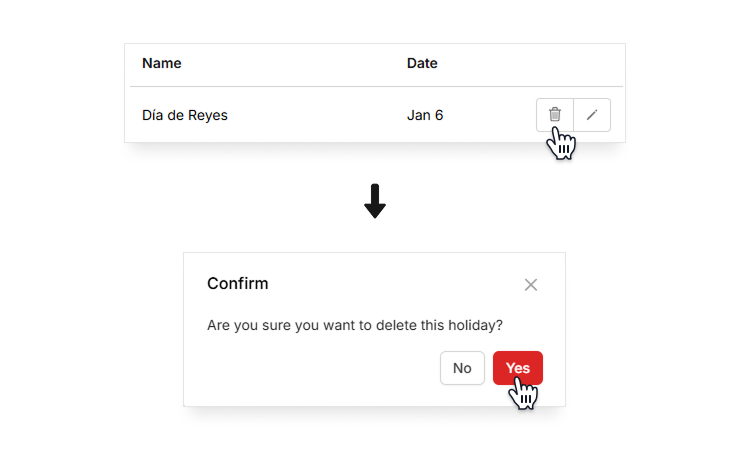
The holiday will be removed from your list and no longer appear on schedules.
